Using Regions of interest (ROIs) in DeepOF - Explore spatial information

What we’ll cover:
Create a project with ROIs
Vasic ROI functionality
Visualize information contained in specific ROIs
Extract information based on different ROIs
[1]:
# # If using Google colab, uncomment and run this cell and the one below to set up the environment
# # Note: because of how colab handles the installation of local packages, this cell will kill your runtime.
# # This is not an error! Just continue with the cells below.
# import os
# !git clone -q https://github.com/mlfpm/deepof.git
# !pip install -q -e deepof --progress-bar off
# os.chdir("deepof")
# !curl --output tutorial_files.zip https://datashare.mpcdf.mpg.de/s/Hu1XjZkY9zml0mm/download
# !unzip tutorial_files.zip
[2]:
# import os
# os.chdir("deepof")
# import os, warnings
# warnings.filterwarnings('ignore')
As usual, we import some packages and plotting gear. We’ll use python’s os library to handle paths, pickle to load saved objects, and the data entry API within DeepOF, located in deepof.data
[3]:
# Import basic stuff
import os
import pickle
import deepof.data
# import plotting gear
import deepof.visuals
import matplotlib.pyplot as plt
import seaborn as sns
Creating a project with ROIs
All we have to do in the project definition to create a project with ROIs is to set the input argument “number_of_rois” to any number between 1 and 20. This will then let us draw our ROIs during project creation
[4]:
my_deepof_project_raw = deepof.data.Project(
    project_path=os.path.join("tutorial_files"),
    video_path=os.path.join("tutorial_files/Videos/"),
    table_path=os.path.join("tutorial_files/Tables/"),
    project_name="deepof_tutorial_project",
    arena="circular-autodetect",
    animal_ids=["B", "W"],
    table_format="h5",
    video_format=".mp4",
    exclude_bodyparts=["Tail_1", "Tail_2", "Tail_tip"],
    video_scale="380 mm",
    iterative_imputation="partial",  # "full",
    smooth_alpha=1,
    exp_conditions="./tutorial_files/tutorial_exp_conditions.csv", # path to exp conditions table
    number_of_rois=3, # an optional input argument that allows you to draw up to 20 different regions of interest (ROI)s during project creation
)
Info! Set arena dimension to 380.0 mm!
The sampling rate of some of your videos differ. The maximum difference is 20191204_Day2_SI_JB08_Test_54: 24.99 fps and 20191204_Day2_SI_JB08_Test_63: 24.994 fps! Proceed with cauthion
As we run our Tutorial scripts automatically for testing purposes and the create function opens a GUI which would interfere with that, the follwoing line of code it is commented out. To create your own project, you can simply remove the “#” at the front of the line and execute it.
[5]:
# my_deepof_project_with_rois = my_deepof_project_raw.create(force=True)
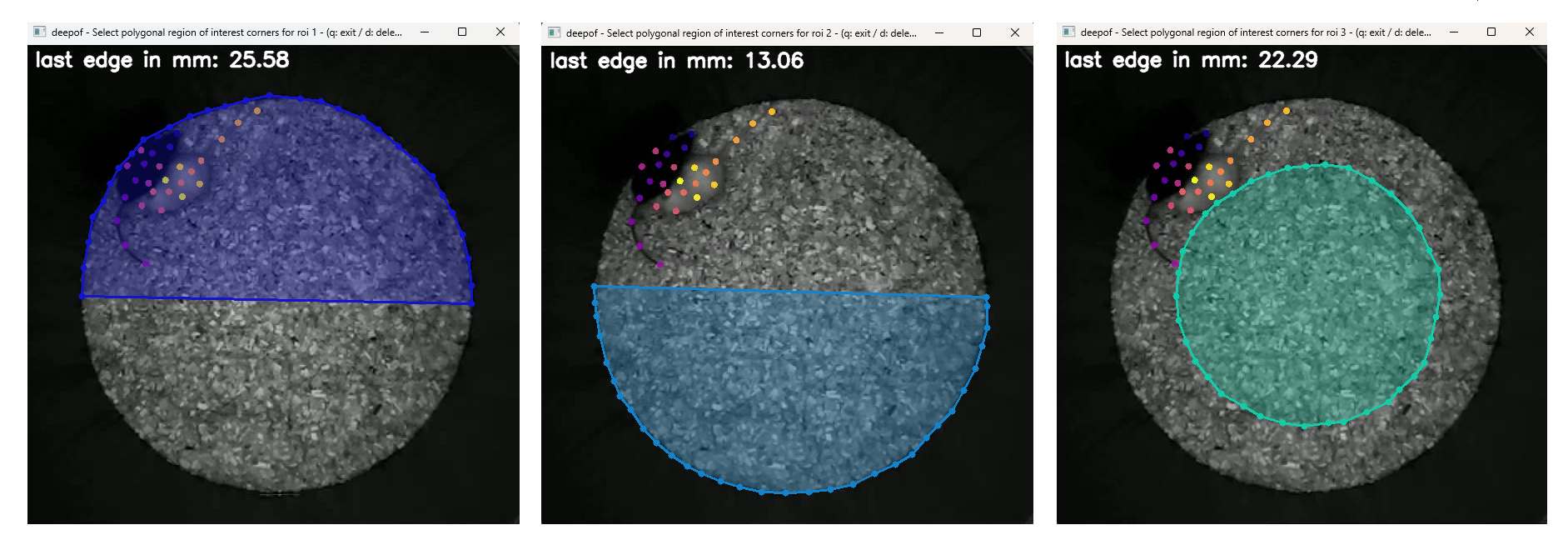
After the arenas are detected (which will take a short while with the automatic detection) one after another, three windows will plop up for you to click your three ROIs just as you would click a nanual polygonal arena (see Figure below). You will always have to click all of the ROIs for one video, then all ROIs for the next one and so on. And just as you can do with the arenas in manual mode, you can propagate single ROIs with the “p”-key. This means that the respective ROI will get copied for all following videos and you will not have to click it manually. However, this means that the ROI will be copied exactly from the previous video. If you have a ROI that may differ from video to video or if your videos are rather inconsistent, it may make more sense to manually click your ROIs for all videos. For this example case we click an upper half area, a lower half area and a central circular area (as in the Figure below).
Loading a previously initiated project
You can now continue to use your own project or just load the larger deepof test project with 53 videos.
[6]:
# Load a previously saved project
my_deepof_project_with_rois = deepof.data.load_project("./tutorial_files/tutorial_project")
NOTE to better show how DeepOF deals with statistics, all results shown in the documentation version of this tutorial were obtained using the full SI dataset, containing a total of 53 animals. If you’d like to gain access to this dataset, check out the code availability statement of the main DeepOF paper.
Basic ROI functionality
For starters, let us have a look at our ROIs for our different experiment conditions. Setting a ROI number in plot_heatmaps will lead to this ROI getting applied to all experiments in the project. If a mouse is inside or outside of a ROI is determined via the position of the center of the mouse. And which mice are relevant for that evaluation is dermined via animals_in_roi.
For this example with roi_number=1 and animals_in_roi=”B” we consider all instances during which mouse B (the black mouse) was inside of ROI 1 (the upper half of the arena) for nonstressed and stressed mice. The Respectively, the position of the white mouse does not matter here.
[7]:
sns.set_context("notebook")

fig, (ax1, ax2) = plt.subplots(1, 2, figsize=(12, 6))

# Nose based plot
deepof.visuals.plot_heatmaps(
    my_deepof_project_with_rois,
    ["B_Center"],
    center="arena",
    exp_condition="CSDS",
    condition_value="Nonstressed",
    ax=ax1,
    show=False,
    display_arena=True,
    experiment_id="average",
    # Time binning info
    bin_index=2,
    bin_size=60,
    samples_max=250, # we reduce the maximum number of samples per experiment to allow for a fatser function execution
    # ROI arguments
    roi_number=1,
    animals_in_roi="B",
)

# Center based plot
deepof.visuals.plot_heatmaps(
    my_deepof_project_with_rois,
    ["B_Center"],
    center="arena",
    exp_condition="CSDS",
    condition_value="Stressed",
    ax=ax2,
    show=False,
    display_arena=True,
    experiment_id="average",
    # Time binning info
    bin_index=2,
    bin_size=60,
    samples_max=250,
    # ROI arguments
    roi_number=1,
    animals_in_roi="B",
)

plt.tight_layout()
plt.show()
Info! Selected range exceeds 250 samples and has been downsampled by a factor of approx. 5
To avoid this, increase 'samples_max'. This will also result in increased computation time

Info! Selected range exceeds 250 samples and has been downsampled by a factor of approx. 5
To avoid this, increase 'samples_max'. This will also result in increased computation time
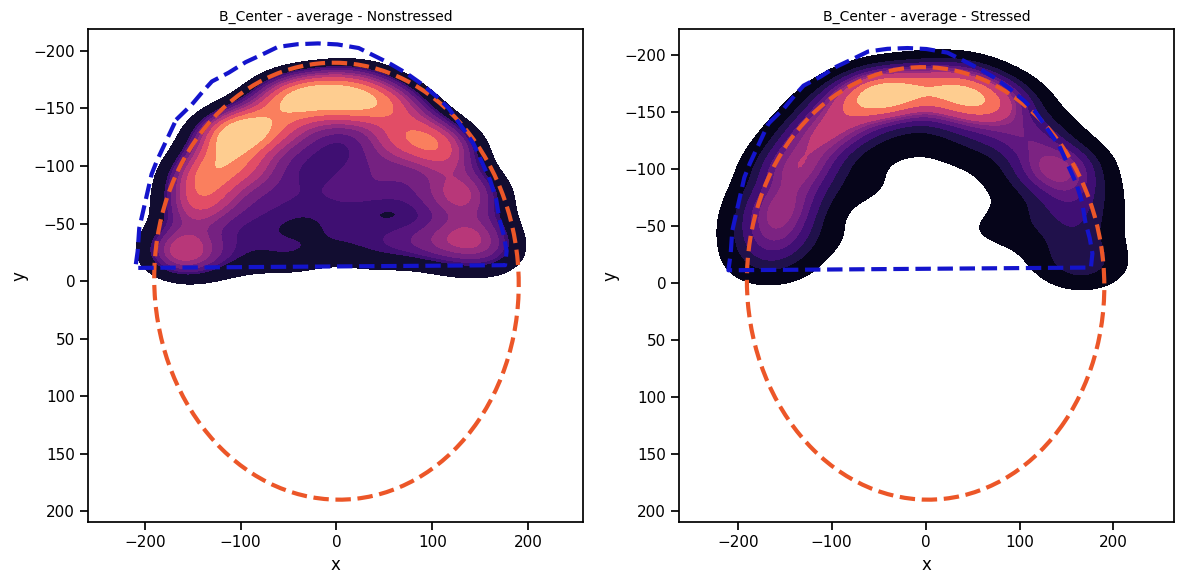
As we can see, the average of our ROIs is a bit to the left of the average arena. This is what can happen if the ROIs are not all clicked individually for all videos as the arena itself is not at the exact same position in each video.
Next, just to understand the ROI funtionality a bit better, we will have a look at two special cases:
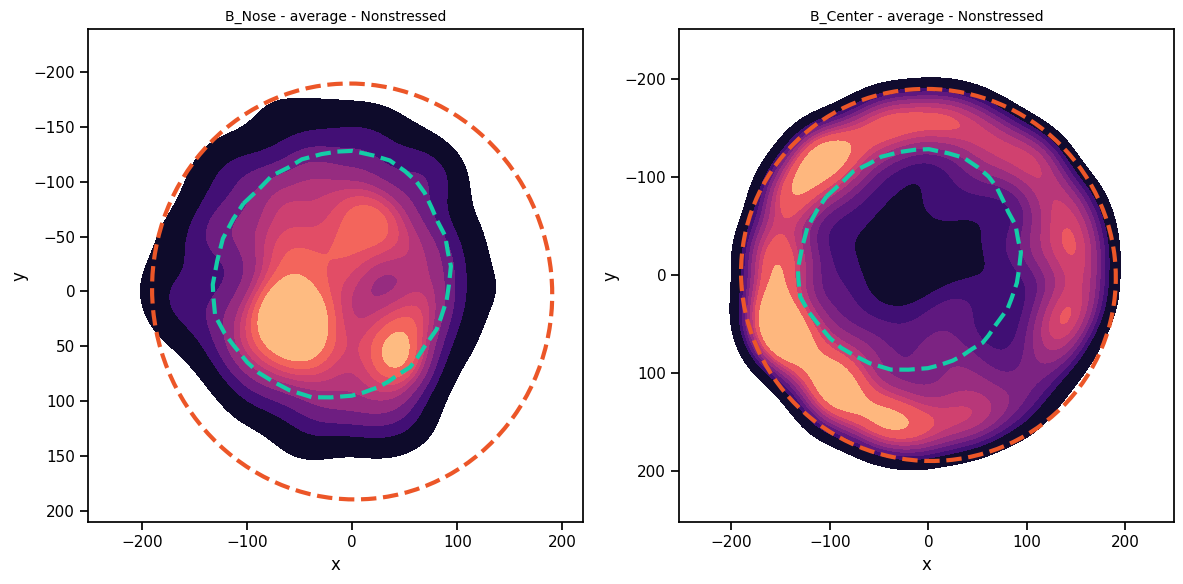
In the first case we extract the nose positions of the black mouse whilst this black mouse was inside of ROI 3. As we can see, some activity is detected outside of the ROI. This happens because the center position of the mouse is used to determine if the mouse is inside of the ROI. Hence, a Mouse standing just on the edge of a ROI and looking outside is still technically “inside” of that ROI.
In the second example we track the center of the black mouse for all frames during which the white mouse is inside of ROI 3. As this doesn’t apply any restrictions to the position of the black mosue, we will see activity in the whole arena.
[8]:
sns.set_context("notebook")

fig, (ax1, ax2) = plt.subplots(1, 2, figsize=(12, 6))

# Nose based plot
deepof.visuals.plot_heatmaps(
    my_deepof_project_with_rois,
    ["B_Nose"],
    center="arena",
    exp_condition="CSDS",
    condition_value="Nonstressed",
    ax=ax1,
    show=False,
    display_arena=True,
    experiment_id="average",
    # Time binning info
    bin_index=2,
    bin_size=60,
    samples_max=250,
    # ROI arguments
    roi_number=3,
    animals_in_roi="B",
)

# Center based plot
deepof.visuals.plot_heatmaps(
    my_deepof_project_with_rois,
    ["B_Center"],
    center="arena",
    exp_condition="CSDS",
    condition_value="Nonstressed",
    ax=ax2,
    show=False,
    display_arena=True,
    experiment_id="average",
    # Time binning info
    bin_index=2,
    bin_size=60,
    samples_max=250,
    # ROI arguments
    roi_number=3,
    animals_in_roi="W",
)

plt.tight_layout()
plt.show()
Info! Selected range exceeds 250 samples and has been downsampled by a factor of approx. 5
To avoid this, increase 'samples_max'. This will also result in increased computation time

Info! Selected range exceeds 250 samples and has been downsampled by a factor of approx. 5
To avoid this, increase 'samples_max'. This will also result in increased computation time
Per default the position of the “Center”-bodypart of the mouse determines if it is inside of the ROI or outside of it. This can also be adjusted by using a different bodypart or a list of bodyparts instead. In case of a list a mouse will only count as “inside” of a ROI if all given bodyparts are inside of the ROI at the same time. If all (not excluded) bodyparts of the mouse should be counted, the keyword “all” can be used:
[9]:
sns.set_context("notebook")

fig, (ax1, ax2, ax3) = plt.subplots(1, 3, figsize=(12, 4))

# Black mouse is in ROI if it's Center is inside of the ROI (default)
deepof.visuals.plot_heatmaps(
    my_deepof_project_with_rois,
    ["B_Center"],
    center="arena",
    exp_condition="CSDS",
    condition_value="Nonstressed",
    ax=ax1,
    show=False,
    display_arena=True,
    experiment_id="average",
    # Time binning info
    bin_index=2,
    bin_size=60,
    samples_max=250,
    # ROI arguments
    roi_number=3,
    animals_in_roi="B",
    in_roi_criterion="Center",
)

# Black mouse is in ROI if it's Nose and ears is inside of the ROI
deepof.visuals.plot_heatmaps(
    my_deepof_project_with_rois,
    ["B_Center"],
    center="arena",
    exp_condition="CSDS",
    condition_value="Nonstressed",
    ax=ax2,
    show=False,
    display_arena=True,
    experiment_id="average",
    # Time binning info
    bin_index=2,
    bin_size=60,
    samples_max=250,
    # ROI arguments
    roi_number=3,
    animals_in_roi="B",
    in_roi_criterion=["Nose","Left_ear","Right_ear"]
)

# Black mouse is in ROI if it's Nose is inside of the ROI
deepof.visuals.plot_heatmaps(
    my_deepof_project_with_rois,
    ["B_Center"],
    center="arena",
    exp_condition="CSDS",
    condition_value="Nonstressed",
    ax=ax3,
    show=False,
    display_arena=True,
    experiment_id="average",
    # Time binning info
    bin_index=2,
    bin_size=60,
    samples_max=250,
    # ROI arguments
    roi_number=3,
    animals_in_roi="B",
    in_roi_criterion="all",
)

plt.tight_layout()
plt.show()
Info! Selected range exceeds 250 samples and has been downsampled by a factor of approx. 5
To avoid this, increase 'samples_max'. This will also result in increased computation time

Info! Selected range exceeds 250 samples and has been downsampled by a factor of approx. 5
To avoid this, increase 'samples_max'. This will also result in increased computation time

Info! Selected range exceeds 250 samples and has been downsampled by a factor of approx. 5
To avoid this, increase 'samples_max'. This will also result in increased computation time
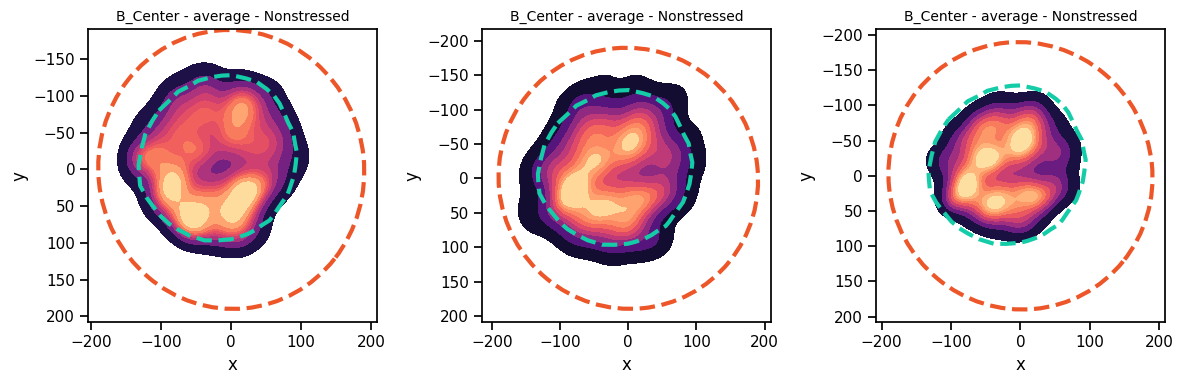
Now, what we are seeing here is all the center positions of the black mouse dependent on if our selected bodyparts were inside the ROI. Respectively, the second plot covers a slightly larger area, as it includes cases where the black mouse stands outside of the ROI and just sticks it’s head in, i.e. it’S Center is outside of the ROI. The third plot covers a slightly smaller area, as absolutely all bodyparts of the black mouse need to be inside of the ROI here.
The roi_functionality works similar for other visualization options, such as the skeleton animation. Here we animate all data for the first 20 seconds (as determined by bin_index and bin_size) during which the black mouse (“B”) is in the top half of the arena, independent of the position of the white mouse (“W”).
[10]:
from IPython import display

video = deepof.visuals.animate_skeleton(
    my_deepof_project_with_rois,
    experiment_id="20191204_Day2_SI_JB08_Test_54",
    bin_index=0,
    bin_size=20,
    sampling_rate=25,
    dpi=60,
    roi_number=1,
    animals_in_roi="B",
    in_roi_criterion="Center",
)

html = display.HTML(video)
display.display(html)
plt.close()
If we instead want that both mice are inside of the ROI, we can also simply set animals_in_roi using a list.
[11]:
from IPython import display

video = deepof.visuals.animate_skeleton(
    my_deepof_project_with_rois,
    experiment_id="20191204_Day2_SI_JB08_Test_54",
    bin_index=0,
    bin_size=20,
    sampling_rate=25,
    dpi=60,
    roi_number=1,
    animals_in_roi=["B", "W"],
)

html = display.HTML(video)
display.display(html)
plt.close()
Plotting with ROIs
For most of the other plots we either need supervised or unsupervised annotations, so let’s quickly compute just that
[12]:
supervised_annotation = my_deepof_project_with_rois.supervised_annotation()
data preprocessing            : 100%|██████████| 4/4 [00:41<00:00, 10.45s/step, step=Loading kinematics]
supervised annotations        : 100%|██████████| 53/53 [01:28<00:00,  1.67s/table, step=post processing]
Now we can apply ROIs to Gant plots, Enrichment plots, and more.
[13]:
plt.figure(figsize=(12, 8))

deepof.visuals.plot_gantt(
    my_deepof_project_with_rois,
    "20191204_Day2_SI_JB08_Test_54",
    supervised_annotations=supervised_annotation,
    roi_number=1,
    animals_in_roi=["B","W"],
)

plt.show()
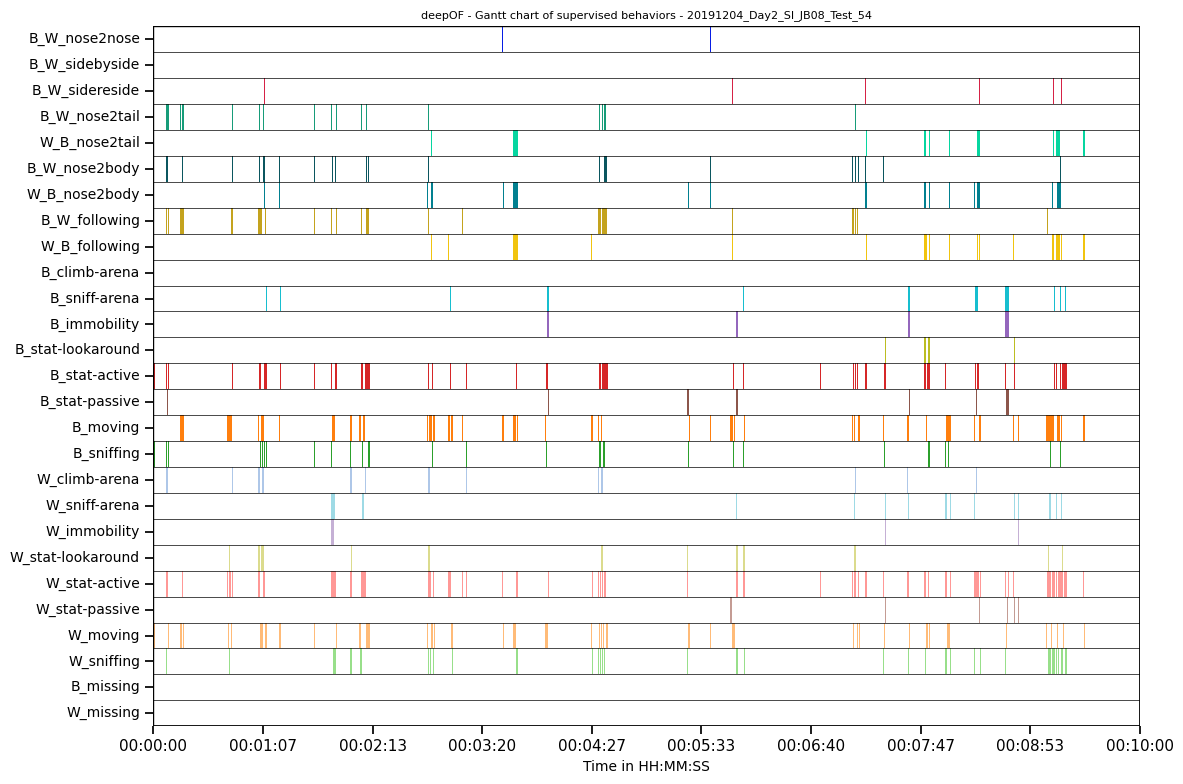
This Gantt-plot is a lot more sparse than it’s pendant in the supervised tutorial, which is expected, as we only include frames during which both mice are in the upper half of the arena.
Some plots like plot_enrichment have an additional roi setting specifically for supervised annotations.
The roi_mode is always set to “mousewise” as a default. This means that the ROIs behave exactly as in all examples before, occuring behaviors are only included if the animals given in animals_in_roi were inside of the ROI during that time. If no animals_in_roi input is explicietly given, all available animals need to be inside of the ROI.
If the roi_mode is set to “behaviorwise” instead, the animals_in_roi input is ignored. Now all behaviors are included during which the mice taking part in that behavior were inside of the ROI. This means that for e.g. B_immobility it is only relevant that the black mouse was inside of the ROI during detection. For W_immobility only the white mouse needs to be inside of the ROI and for paired behaviors, such as W_B_following, both mice need to be inside of the ROI.
[14]:
fig, (ax1, ax2) = plt.subplots(2, 1, figsize=(12, 10))

deepof.visuals.plot_enrichment(
    my_deepof_project_with_rois,
    supervised_annotations=supervised_annotation,
    add_stats="Mann-Whitney",
    plot_speed=False,
    roi_number = 1,
    roi_mode = "mousewise",
    animals_in_roi=["B","W"],
    ax = ax1,
)

deepof.visuals.plot_enrichment(
    my_deepof_project_with_rois,
    supervised_annotations=supervised_annotation,
    add_stats="Mann-Whitney",
    plot_speed=False,
    roi_number = 1,
    roi_mode = "behaviorwise",
    ax = ax2,
)

plt.tight_layout()
plt.show()
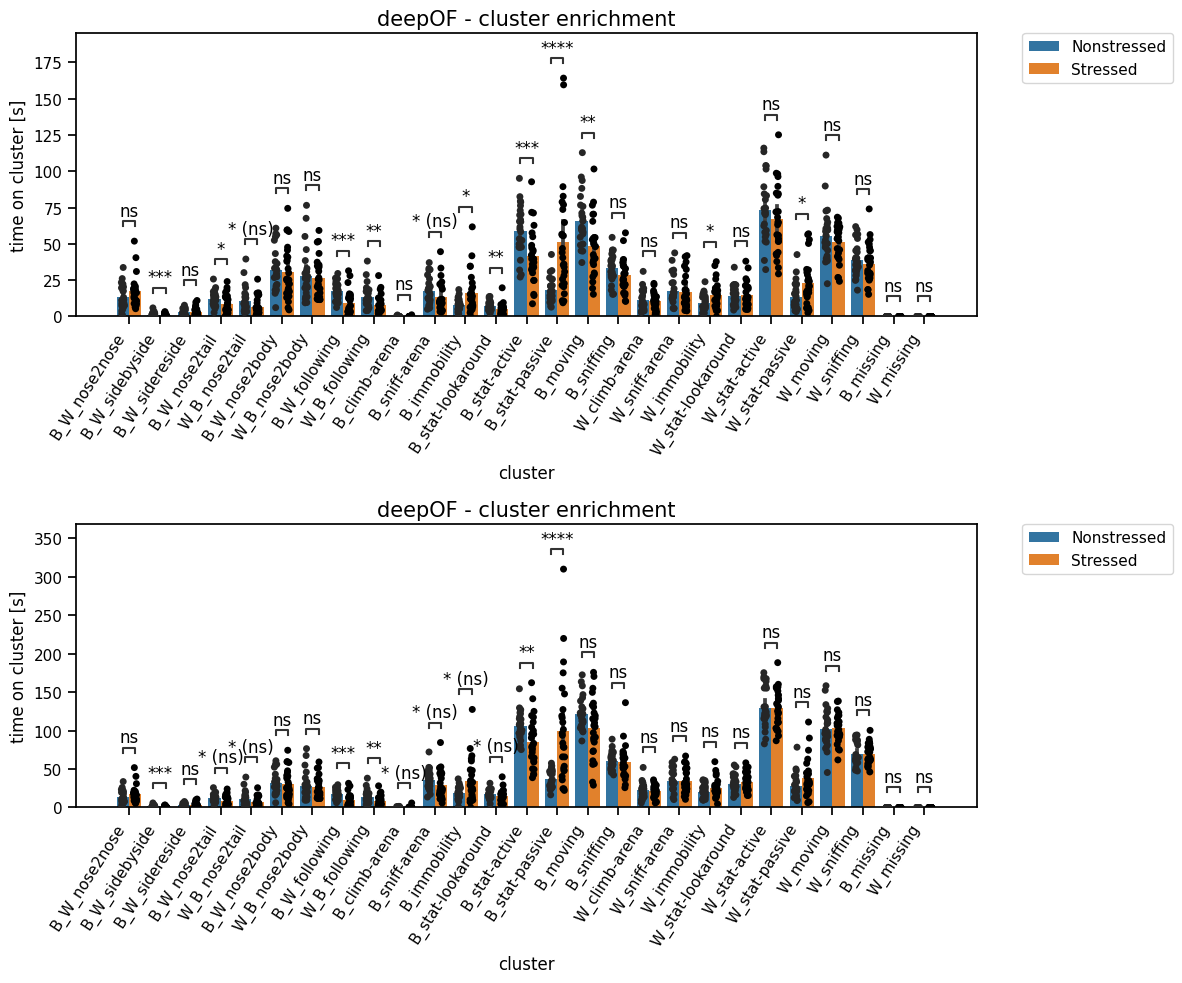
Other plot functions, such as plot_transitions, plot_stationary_entropy, plot_embeddings or plot_behavior_trends as well as export_annotated_video also support the roi functionality. Besides applying ROIs on the existing plotting functions, there is also specific ROI-related information that can be visualized.
ROI specific plots
The function “plot_mouse_roi_interaction” allows the user to visualize the distances different mice from different ROIs have. It works analogously to plot_behavior_trends (see Supervised tutorial) by showing the average distance for chosen time bins of given mouse bodyparts to a given ROI. If more than one bodypart is given, the distance to the bodypart closest to the ROI is counted. With the call below we evaluate the distance of the nose of the black mouse to ROI 3 (the inner arena circle) for 20 time bins accross teh signal, compairing the CSDS conditions. Note that the distance is ignored if the mouse bodypart is inside of the ROI.
[15]:
deepof.visuals.plot_mouse_roi_interaction(
    my_deepof_project_with_rois,
    bodyparts = ["B_Nose"],
    roi_number= 3,
    N_time_bins=20,
    mode="distance",
    exp_condition="CSDS",
)

plt.show()
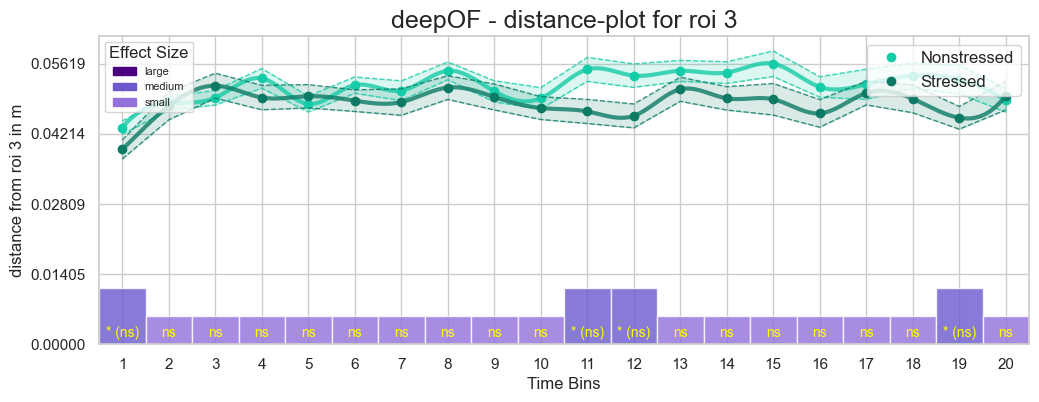
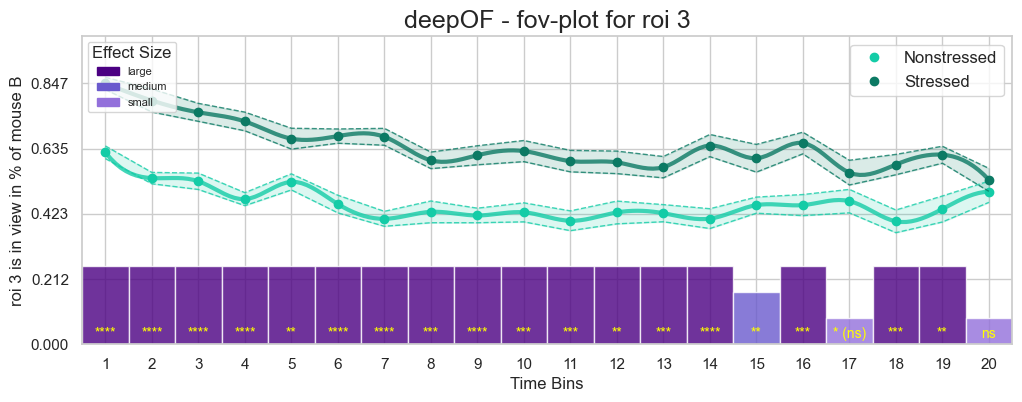
As we can see there is not much of a difference, only the nose of the black mouse might, on average, be slightly closer to the ROI (if the mouse is not inside the ROI). This seems odd at first, as we also know that the stressed mice in general avoid the middle of the arena. But there is an explanation for this. Now, if we switch to the “field of view” (i.e. “fov”) mode and sleect an animal id instead, we can now visualize how long roi 3 was in the field of view of the black mouse for the stressed and non-stressed case.
[16]:
deepof.visuals.plot_mouse_roi_interaction(
    my_deepof_project_with_rois,
    animal_id = "B",
    roi_number= 3,
    N_time_bins=20,
    mode="fov",
    exp_condition="CSDS",
)
[16]:
<Axes: title={'center': 'deepOF - fov-plot for roi 3'}, xlabel='Time Bins', ylabel='roi 3 is in view in % of mouse B'>
With this we now clearly see that the stressed mice were looking more often towards ROI 3, i.e. the center of the arena, especially towards the beginning of the experiment. This makes sense, as a stressed mouse might be more anxious about keeping an eye on the dominant mouse. The direction in which the mouse is looking is likely also the reason for the slight difference in nose distances.
Additionally, the plotted data can be returned directly by using the function return_mouse_roi_interaction. It uses mostly the same input options as the plot function and returns two tables per default
[17]:
binned_effect_sizes_df, binned_group_df = deepof.visuals.return_mouse_roi_interaction(
    my_deepof_project_with_rois,
    animal_id = "B",
    roi_number= 3,
    N_time_bins=20,
    mode="fov",
    exp_condition="CSDS",
)
binned_effect_sizes_df contains all plotted information including effect sizes.
[18]:
binned_effect_sizes_df
[18]:
| time_bin | Absolute_Cohens_d | Effect_Size_Category | bin_means_Nonstressed | bin_sem_Nonstressed | bin_means_Stressed | bin_sem_Stressed | |
|---|---|---|---|---|---|---|---|
| 0 | 0 | 2.147370 | 3 | 0.623332 | 0.020562 | 0.846828 | 0.019887 |
| 1 | 1 | 1.641865 | 3 | 0.539462 | 0.018466 | 0.791246 | 0.037320 |
| 2 | 2 | 1.555294 | 3 | 0.529122 | 0.026582 | 0.752996 | 0.029172 |
| 3 | 3 | 1.863716 | 3 | 0.471120 | 0.021082 | 0.723351 | 0.030317 |
| 4 | 4 | 0.897202 | 3 | 0.527192 | 0.026131 | 0.667511 | 0.033834 |
| 5 | 5 | 1.652882 | 3 | 0.455210 | 0.028639 | 0.675814 | 0.023123 |
| 6 | 6 | 1.995586 | 3 | 0.407317 | 0.024271 | 0.673574 | 0.027347 |
| 7 | 7 | 1.040807 | 3 | 0.429874 | 0.035301 | 0.597100 | 0.026862 |
| 8 | 8 | 1.373401 | 3 | 0.418158 | 0.023645 | 0.613590 | 0.030877 |
| 9 | 9 | 1.180728 | 3 | 0.428277 | 0.030910 | 0.627180 | 0.034308 |
| 10 | 10 | 1.120252 | 3 | 0.400932 | 0.032131 | 0.594618 | 0.034868 |
| 11 | 11 | 0.859580 | 3 | 0.427903 | 0.036961 | 0.590536 | 0.036547 |
| 12 | 12 | 0.919912 | 3 | 0.425534 | 0.027857 | 0.574910 | 0.034599 |
| 13 | 13 | 1.346581 | 3 | 0.407891 | 0.032162 | 0.645142 | 0.036020 |
| 14 | 14 | 0.795597 | 2 | 0.451670 | 0.026151 | 0.603879 | 0.045010 |
| 15 | 15 | 1.127227 | 3 | 0.451806 | 0.034309 | 0.653350 | 0.035108 |
| 16 | 16 | 0.458690 | 1 | 0.464717 | 0.038098 | 0.557228 | 0.040140 |
| 17 | 17 | 1.025630 | 3 | 0.399075 | 0.036809 | 0.583382 | 0.033038 |
| 18 | 18 | 0.968263 | 3 | 0.439136 | 0.042203 | 0.615334 | 0.027506 |
| 19 | 19 | 0.208054 | 1 | 0.495226 | 0.034547 | 0.533786 | 0.037289 |
And binned_group_df contains the group and binning information for all included experiments and experimental conditions.
[19]:
binned_group_df
[19]:
| time_bin | bin_length | exp_condition | fov | |
|---|---|---|---|---|
| 0 | 0 | 730 | Nonstressed | 0.491108 |
| 1 | 1 | 730 | Nonstressed | 0.522222 |
| 2 | 2 | 730 | Nonstressed | 0.678977 |
| 3 | 3 | 730 | Nonstressed | 0.627907 |
| 4 | 4 | 730 | Nonstressed | 0.745554 |
| ... | ... | ... | ... | ... |
| 1055 | 15 | 730 | Stressed | 0.807114 |
| 1056 | 16 | 730 | Stressed | 0.683562 |
| 1057 | 17 | 730 | Stressed | 0.567308 |
| 1058 | 18 | 730 | Stressed | 0.484225 |
| 1059 | 19 | 730 | Stressed | 0.834247 |
1060 rows × 4 columns
Alternatively, raw data of only field of view or distance information can be directly retrieved for all experimental conditions, ignoring all binning
[20]:
deepof.visuals.return_mouse_roi_interaction(
    my_deepof_project_with_rois,
    animal_id = "B",
    roi_number= 3,
    N_time_bins=20,
    mode="fov",
    exp_condition="CSDS",
    get_raw_data=True
)
[20]:
| 20191203_Day1_SI_JB08_Test_7 | 20191203_Day1_SI_JB08_Test_8 | 20191203_Day1_SI_JB08_Test_13 | 20191203_Day1_SI_JB08_Test_14 | 20191203_Day1_SI_JB08_Test_23 | 20191203_Day1_SI_JB08_Test_24 | 20191203_Day1_SI_JB08_Test_29 | 20191203_Day1_SI_JB08_Test_30 | 20191203_Day1_SI_JB08_Test_39 | 20191203_Day1_SI_JB08_Test_40 | ... | 20191204_Day2_SI_JB08_Test_24 | 20191204_Day2_SI_JB08_Test_30 | 20191204_Day2_SI_JB08_Test_39 | 20191204_Day2_SI_JB08_Test_40 | 20191204_Day2_SI_JB08_Test_45 | 20191204_Day2_SI_JB08_Test_46 | 20191204_Day2_SI_JB08_Test_55 | 20191204_Day2_SI_JB08_Test_56 | 20191204_Day2_SI_JB08_Test_61 | 20191204_Day2_SI_JB08_Test_62 | |
|---|---|---|---|---|---|---|---|---|---|---|---|---|---|---|---|---|---|---|---|---|---|
| 0 | 1.0 | 0.0 | 1.0 | 1.0 | 1.0 | 1.0 | 1.0 | 1.0 | 0.0 | 0.0 | ... | 1.0 | NaN | 1.0 | 1.0 | 1.0 | 1.0 | 0.0 | 1.0 | 1.0 | 1.0 |
| 1 | 1.0 | 0.0 | 1.0 | 1.0 | 1.0 | 1.0 | 1.0 | 1.0 | 0.0 | 0.0 | ... | 1.0 | NaN | 1.0 | 1.0 | 1.0 | 1.0 | 0.0 | 1.0 | 1.0 | 1.0 |
| 2 | 1.0 | 0.0 | 1.0 | 1.0 | 1.0 | 1.0 | 1.0 | 1.0 | 0.0 | 0.0 | ... | 1.0 | NaN | 1.0 | 1.0 | 1.0 | 1.0 | 0.0 | 1.0 | 1.0 | 1.0 |
| 3 | 1.0 | 0.0 | 1.0 | 1.0 | 1.0 | 1.0 | 1.0 | 1.0 | 0.0 | 0.0 | ... | 1.0 | NaN | 1.0 | 1.0 | 1.0 | 1.0 | 0.0 | 1.0 | 1.0 | 1.0 |
| 4 | 1.0 | 0.0 | 1.0 | 1.0 | 1.0 | 1.0 | 1.0 | 1.0 | 0.0 | 0.0 | ... | 1.0 | NaN | 1.0 | 1.0 | 1.0 | 1.0 | 0.0 | 1.0 | 1.0 | 1.0 |
| ... | ... | ... | ... | ... | ... | ... | ... | ... | ... | ... | ... | ... | ... | ... | ... | ... | ... | ... | ... | ... | ... |
| 14996 | 1.0 | 0.0 | 1.0 | NaN | 0.0 | 0.0 | 1.0 | 0.0 | 0.0 | 1.0 | ... | 0.0 | 0.0 | 0.0 | 1.0 | 0.0 | 1.0 | 1.0 | 1.0 | 0.0 | 0.0 |
| 14997 | 1.0 | 0.0 | NaN | NaN | NaN | NaN | 1.0 | 0.0 | NaN | 1.0 | ... | 0.0 | NaN | 0.0 | NaN | 0.0 | 1.0 | 1.0 | 1.0 | 0.0 | 0.0 |
| 14998 | NaN | NaN | NaN | NaN | NaN | NaN | 1.0 | 0.0 | NaN | NaN | ... | NaN | NaN | 0.0 | NaN | 0.0 | NaN | 1.0 | NaN | 0.0 | NaN |
| 14999 | NaN | NaN | NaN | NaN | NaN | NaN | 1.0 | 0.0 | NaN | NaN | ... | NaN | NaN | 0.0 | NaN | NaN | NaN | NaN | NaN | NaN | NaN |
| 15000 | NaN | NaN | NaN | NaN | NaN | NaN | NaN | NaN | NaN | NaN | ... | NaN | NaN | NaN | NaN | NaN | NaN | NaN | NaN | NaN | NaN |
15001 rows × 53 columns
Analogously ROIs can also be applied to other data sources.
Extract data directly using ROIs
Plotting all of this may look nice, but maybe you want to create your own, even nicer plot. For this we have various ways to extract data directly after ROI application
Extracting coordinates works exactly as described in the preprocessing tutorial. It only requires the addition of the roi_number you want to use and the animals that should be inside of that ROI. Aditonally you can also set a in_roi_criterion just as you can for teh plots. All frames during which these conditions were not fulfilled will be set to NaN.
[21]:
coords = my_deepof_project_with_rois.get_coords(roi_number=1, animals_in_roi=["B","W"], in_roi_criterion="Center")
coords.filter_id("B")['20191204_Day2_SI_JB08_Test_54']
[21]:
| B_Center | B_Left_bhip | B_Left_ear | B_Left_fhip | B_Nose | ... | B_Right_ear | B_Right_fhip | B_Spine_1 | B_Spine_2 | B_Tail_base | |||||||||||
|---|---|---|---|---|---|---|---|---|---|---|---|---|---|---|---|---|---|---|---|---|---|
| x | y | x | y | x | y | x | y | x | y | ... | x | y | x | y | x | y | x | y | x | y | |
| 00:00:00 | 178.695067 | 150.903525 | 178.133481 | 164.579831 | 160.236194 | 129.369839 | 162.932410 | 149.543005 | 166.288734 | 115.459213 | ... | 175.473650 | 127.391220 | 181.920601 | 137.218331 | 170.050867 | 140.762637 | 190.880247 | 157.459358 | 204.986693 | 161.780679 |
| 00:00:00.040002666 | 178.695067 | 150.903525 | 178.133481 | 164.579831 | 160.236194 | 129.369839 | 162.932410 | 149.543005 | 166.288734 | 115.459213 | ... | 175.473650 | 127.391220 | 181.920601 | 137.218331 | 170.050867 | 140.762637 | 190.880247 | 157.459358 | 204.986693 | 161.780679 |
| 00:00:00.080005333 | 178.695067 | 150.903525 | 178.133481 | 164.579831 | 160.236194 | 129.369839 | 162.932410 | 149.543005 | 166.288734 | 115.459213 | ... | 175.473650 | 127.391220 | 181.920601 | 137.218331 | 170.050867 | 140.762637 | 190.880247 | 157.459358 | 204.986693 | 161.780679 |
| 00:00:00.120008 | 177.009679 | 149.650528 | 175.106624 | 163.666017 | 163.807836 | 124.262824 | 161.761900 | 147.278549 | 174.192032 | 112.040097 | ... | 180.079795 | 125.958622 | 184.009635 | 136.824217 | 171.210362 | 138.769813 | 188.593896 | 157.714930 | 203.863200 | 162.280499 |
| 00:00:00.160010667 | 177.767518 | 147.833830 | 173.779126 | 162.437004 | 167.520924 | 121.969513 | 163.445137 | 144.056996 | 179.274246 | 108.299092 | ... | 183.599288 | 123.947488 | 186.337662 | 135.377970 | 173.565589 | 136.397291 | 187.809489 | 157.195280 | 202.295015 | 162.775274 |
| ... | ... | ... | ... | ... | ... | ... | ... | ... | ... | ... | ... | ... | ... | ... | ... | ... | ... | ... | ... | ... | ... |
| 00:09:59.799986665 | NaN | NaN | NaN | NaN | NaN | NaN | NaN | NaN | NaN | NaN | ... | NaN | NaN | NaN | NaN | NaN | NaN | NaN | NaN | NaN | NaN |
| 00:09:59.839989332 | NaN | NaN | NaN | NaN | NaN | NaN | NaN | NaN | NaN | NaN | ... | NaN | NaN | NaN | NaN | NaN | NaN | NaN | NaN | NaN | NaN |
| 00:09:59.879991999 | NaN | NaN | NaN | NaN | NaN | NaN | NaN | NaN | NaN | NaN | ... | NaN | NaN | NaN | NaN | NaN | NaN | NaN | NaN | NaN | NaN |
| 00:09:59.919994666 | NaN | NaN | NaN | NaN | NaN | NaN | NaN | NaN | NaN | NaN | ... | NaN | NaN | NaN | NaN | NaN | NaN | NaN | NaN | NaN | NaN |
| 00:09:59.959997333 | NaN | NaN | NaN | NaN | NaN | NaN | NaN | NaN | NaN | NaN | ... | NaN | NaN | NaN | NaN | NaN | NaN | NaN | NaN | NaN | NaN |
14999 rows × 22 columns
For merging tables, one should take care to enter the correct arguments in both data retrival function calls. Otherwise missmatches can happen, as in this example, in which different roi numbers were used for the standard coords and distance tables.
[22]:
my_deepof_project_with_rois.get_coords(roi_number=1, animals_in_roi=["B","W"]).merge(my_deepof_project_with_rois.get_areas(roi_number=2, animals_in_roi=["B","W"]))['20191204_Day2_SI_JB08_Test_54']
[22]:
| (B_Center, x) | (B_Center, y) | (B_Left_bhip, x) | (B_Left_bhip, y) | (B_Left_ear, x) | (B_Left_ear, y) | (B_Left_fhip, x) | (B_Left_fhip, y) | (B_Nose, x) | (B_Nose, y) | ... | (W_Tail_base, x) | (W_Tail_base, y) | B_head_area | B_torso_area | B_back_area | B_full_area | W_head_area | W_torso_area | W_back_area | W_full_area | |
|---|---|---|---|---|---|---|---|---|---|---|---|---|---|---|---|---|---|---|---|---|---|
| 00:00:00 | 178.695067 | 150.903525 | 178.133481 | 164.579831 | 160.236194 | 129.369839 | 162.932410 | 149.543005 | 166.288734 | 115.459213 | ... | 284.276209 | 81.953327 | NaN | NaN | NaN | NaN | NaN | NaN | NaN | NaN |
| 00:00:00.040002666 | 178.695067 | 150.903525 | 178.133481 | 164.579831 | 160.236194 | 129.369839 | 162.932410 | 149.543005 | 166.288734 | 115.459213 | ... | 284.276209 | 81.953327 | NaN | NaN | NaN | NaN | NaN | NaN | NaN | NaN |
| 00:00:00.080005333 | 178.695067 | 150.903525 | 178.133481 | 164.579831 | 160.236194 | 129.369839 | 162.932410 | 149.543005 | 166.288734 | 115.459213 | ... | 284.276209 | 81.953327 | NaN | NaN | NaN | NaN | NaN | NaN | NaN | NaN |
| 00:00:00.120008 | 177.009679 | 149.650528 | 175.106624 | 163.666017 | 163.807836 | 124.262824 | 161.761900 | 147.278549 | 174.192032 | 112.040097 | ... | 293.070473 | 82.577959 | NaN | NaN | NaN | NaN | NaN | NaN | NaN | NaN |
| 00:00:00.160010667 | 177.767518 | 147.833830 | 173.779126 | 162.437004 | 167.520924 | 121.969513 | 163.445137 | 144.056996 | 179.274246 | 108.299092 | ... | 299.036433 | 86.246318 | NaN | NaN | NaN | NaN | NaN | NaN | NaN | NaN |
| ... | ... | ... | ... | ... | ... | ... | ... | ... | ... | ... | ... | ... | ... | ... | ... | ... | ... | ... | ... | ... | ... |
| 00:09:59.799986665 | NaN | NaN | NaN | NaN | NaN | NaN | NaN | NaN | NaN | NaN | ... | NaN | NaN | 239.351756 | 336.178223 | 369.570164 | 1236.107578 | 338.985792 | 306.291532 | 398.589194 | 1296.123237 |
| 00:09:59.839989332 | NaN | NaN | NaN | NaN | NaN | NaN | NaN | NaN | NaN | NaN | ... | NaN | NaN | 225.022660 | 337.583006 | 356.664988 | 1202.726262 | 339.620050 | 307.614990 | 401.612088 | 1299.472646 |
| 00:09:59.879991999 | NaN | NaN | NaN | NaN | NaN | NaN | NaN | NaN | NaN | NaN | ... | NaN | NaN | 254.932272 | 347.361879 | 366.539329 | 1240.353140 | 339.318562 | 307.496487 | 402.713953 | 1300.378284 |
| 00:09:59.919994666 | NaN | NaN | NaN | NaN | NaN | NaN | NaN | NaN | NaN | NaN | ... | NaN | NaN | 254.932272 | 347.361879 | 366.539329 | 1240.353140 | 339.318562 | 307.496487 | 402.713953 | 1300.378284 |
| 00:09:59.959997333 | NaN | NaN | NaN | NaN | NaN | NaN | NaN | NaN | NaN | NaN | ... | NaN | NaN | 254.932272 | 347.361879 | 366.539329 | 1240.353140 | 339.318562 | 307.496487 | 402.713953 | 1300.378284 |
14999 rows × 52 columns
Similarily, we can also count events using ROIs
[23]:
deepof.visuals.count_all_events(
    my_deepof_project_with_rois,
    supervised_annotations=supervised_annotation,
    bin_size=60,
    bin_index=0,
    counting_mode = "Events",
    roi_number=1,
    animals_in_roi="B",
)
[23]:
| B_W_nose2nose | B_W_sidebyside | B_W_sidereside | B_W_nose2tail | W_B_nose2tail | B_W_nose2body | W_B_nose2body | B_W_following | W_B_following | B_climb-arena | ... | W_moving | W_sniffing | B_missing | W_missing | B_distance | B_cum-distance | B_speed | W_distance | W_cum-distance | W_speed | |
|---|---|---|---|---|---|---|---|---|---|---|---|---|---|---|---|---|---|---|---|---|---|
| 20191203_Day1_SI_JB08_Test_5 | 1 | 0 | 0 | 0 | 0 | 0 | 0 | 0 | 1 | 0 | ... | 25 | 74 | 0 | 0 | NaN | NaN | NaN | NaN | NaN | NaN |
| 20191203_Day1_SI_JB08_Test_6 | 3 | 0 | 1 | 0 | 2 | 3 | 4 | 0 | 3 | 0 | ... | 14 | 31 | 0 | 0 | NaN | NaN | NaN | NaN | NaN | NaN |
| 20191203_Day1_SI_JB08_Test_7 | 1 | 0 | 1 | 6 | 1 | 3 | 2 | 5 | 3 | 0 | ... | 11 | 26 | 0 | 0 | NaN | NaN | NaN | NaN | NaN | NaN |
| 20191203_Day1_SI_JB08_Test_8 | 5 | 4 | 1 | 8 | 1 | 10 | 2 | 9 | 1 | 0 | ... | 14 | 34 | 0 | 0 | NaN | NaN | NaN | NaN | NaN | NaN |
| 20191203_Day1_SI_JB08_Test_13 | 2 | 0 | 1 | 0 | 1 | 4 | 2 | 3 | 0 | 0 | ... | 16 | 30 | 0 | 0 | NaN | NaN | NaN | NaN | NaN | NaN |
| 20191203_Day1_SI_JB08_Test_14 | 4 | 0 | 0 | 3 | 0 | 9 | 1 | 3 | 1 | 0 | ... | 22 | 48 | 0 | 0 | NaN | NaN | NaN | NaN | NaN | NaN |
| 20191203_Day1_SI_JB08_Test_15 | 7 | 0 | 0 | 0 | 2 | 6 | 6 | 0 | 1 | 0 | ... | 23 | 53 | 0 | 0 | NaN | NaN | NaN | NaN | NaN | NaN |
| 20191203_Day1_SI_JB08_Test_16 | 1 | 0 | 0 | 0 | 2 | 1 | 3 | 0 | 1 | 0 | ... | 25 | 59 | 0 | 0 | NaN | NaN | NaN | NaN | NaN | NaN |
| 20191203_Day1_SI_JB08_Test_22 | 1 | 0 | 0 | 0 | 0 | 0 | 1 | 0 | 0 | 0 | ... | 28 | 59 | 0 | 0 | NaN | NaN | NaN | NaN | NaN | NaN |
| 20191203_Day1_SI_JB08_Test_23 | 0 | 0 | 0 | 7 | 0 | 9 | 0 | 7 | 0 | 0 | ... | 8 | 21 | 0 | 0 | NaN | NaN | NaN | NaN | NaN | NaN |
| 20191203_Day1_SI_JB08_Test_24 | 1 | 0 | 0 | 6 | 0 | 8 | 1 | 6 | 0 | 0 | ... | 8 | 23 | 0 | 0 | NaN | NaN | NaN | NaN | NaN | NaN |
| 20191203_Day1_SI_JB08_Test_29 | 4 | 0 | 1 | 8 | 6 | 12 | 10 | 7 | 7 | 0 | ... | 15 | 47 | 0 | 0 | NaN | NaN | NaN | NaN | NaN | NaN |
| 20191203_Day1_SI_JB08_Test_30 | 2 | 0 | 1 | 16 | 0 | 11 | 3 | 13 | 3 | 0 | ... | 12 | 32 | 0 | 1 | NaN | NaN | NaN | NaN | NaN | NaN |
| 20191203_Day1_SI_JB08_Test_31 | 3 | 0 | 0 | 0 | 1 | 2 | 1 | 0 | 1 | 0 | ... | 7 | 16 | 0 | 0 | NaN | NaN | NaN | NaN | NaN | NaN |
| 20191203_Day1_SI_JB08_Test_32 | 0 | 0 | 0 | 0 | 0 | 0 | 0 | 0 | 0 | 0 | ... | 0 | 0 | 0 | 0 | 0.0 | 0.0 | 0.0 | 0.0 | 0.0 | 0.0 |
| 20191203_Day1_SI_JB08_Test_37 | 1 | 0 | 0 | 0 | 0 | 0 | 0 | 0 | 1 | 0 | ... | 22 | 53 | 0 | 0 | NaN | NaN | NaN | NaN | NaN | NaN |
| 20191203_Day1_SI_JB08_Test_38 | 3 | 0 | 0 | 0 | 1 | 1 | 2 | 0 | 4 | 0 | ... | 19 | 51 | 0 | 0 | NaN | NaN | NaN | NaN | NaN | NaN |
| 20191203_Day1_SI_JB08_Test_39 | 1 | 0 | 4 | 6 | 4 | 6 | 3 | 9 | 6 | 0 | ... | 12 | 49 | 0 | 1 | NaN | NaN | NaN | NaN | NaN | NaN |
| 20191203_Day1_SI_JB08_Test_40 | 3 | 0 | 3 | 4 | 5 | 7 | 5 | 7 | 5 | 0 | ... | 27 | 66 | 0 | 0 | NaN | NaN | NaN | NaN | NaN | NaN |
| 20191203_Day1_SI_JB08_Test_45 | 5 | 2 | 0 | 14 | 1 | 9 | 1 | 14 | 1 | 0 | ... | 11 | 31 | 0 | 0 | NaN | NaN | NaN | NaN | NaN | NaN |
| 20191203_Day1_SI_JB08_Test_46 | 1 | 0 | 0 | 6 | 0 | 7 | 1 | 13 | 1 | 0 | ... | 19 | 42 | 0 | 0 | NaN | NaN | NaN | NaN | NaN | NaN |
| 20191203_Day1_SI_JB08_Test_47 | 0 | 0 | 0 | 0 | 0 | 0 | 0 | 0 | 0 | 0 | ... | 7 | 12 | 0 | 0 | NaN | NaN | NaN | NaN | NaN | NaN |
| 20191203_Day1_SI_JB08_Test_53 | 0 | 0 | 0 | 0 | 0 | 0 | 0 | 0 | 0 | 0 | ... | 25 | 47 | 0 | 0 | NaN | NaN | NaN | NaN | NaN | NaN |
| 20191203_Day1_SI_JB08_Test_54 | 4 | 1 | 1 | 7 | 0 | 5 | 1 | 7 | 1 | 0 | ... | 19 | 43 | 0 | 0 | NaN | NaN | NaN | NaN | NaN | NaN |
| 20191203_Day1_SI_JB08_Test_55 | 0 | 0 | 0 | 8 | 0 | 6 | 0 | 9 | 0 | 0 | ... | 13 | 31 | 0 | 0 | NaN | NaN | NaN | NaN | NaN | NaN |
| 20191203_Day1_SI_JB08_Test_56 | 3 | 0 | 2 | 7 | 2 | 8 | 3 | 3 | 1 | 0 | ... | 16 | 51 | 0 | 0 | NaN | NaN | NaN | NaN | NaN | NaN |
| 20191204_Day2_SI_JB08_Test_6 | 0 | 0 | 0 | 4 | 0 | 4 | 0 | 3 | 0 | 0 | ... | 15 | 45 | 0 | 0 | NaN | NaN | NaN | NaN | NaN | NaN |
| 20191204_Day2_SI_JB08_Test_7 | 0 | 0 | 0 | 0 | 0 | 0 | 0 | 0 | 2 | 0 | ... | 12 | 22 | 0 | 0 | NaN | NaN | NaN | NaN | NaN | NaN |
| 20191204_Day2_SI_JB08_Test_8 | 4 | 0 | 2 | 0 | 3 | 5 | 1 | 0 | 5 | 0 | ... | 12 | 48 | 0 | 0 | NaN | NaN | NaN | NaN | NaN | NaN |
| 20191204_Day2_SI_JB08_Test_13 | 3 | 0 | 1 | 0 | 1 | 2 | 3 | 0 | 4 | 0 | ... | 15 | 37 | 0 | 0 | NaN | NaN | NaN | NaN | NaN | NaN |
| 20191204_Day2_SI_JB08_Test_14 | 1 | 0 | 0 | 0 | 0 | 1 | 1 | 0 | 1 | 0 | ... | 19 | 47 | 0 | 1 | NaN | NaN | NaN | NaN | NaN | NaN |
| 20191204_Day2_SI_JB08_Test_15 | 3 | 0 | 0 | 5 | 0 | 9 | 1 | 13 | 3 | 0 | ... | 14 | 32 | 0 | 0 | NaN | NaN | NaN | NaN | NaN | NaN |
| 20191204_Day2_SI_JB08_Test_16 | 4 | 0 | 3 | 5 | 2 | 11 | 6 | 6 | 4 | 0 | ... | 11 | 28 | 0 | 0 | NaN | NaN | NaN | NaN | NaN | NaN |
| 20191204_Day2_SI_JB08_Test_21 | 2 | 1 | 2 | 8 | 3 | 10 | 4 | 11 | 3 | 0 | ... | 11 | 32 | 0 | 0 | NaN | NaN | NaN | NaN | NaN | NaN |
| 20191204_Day2_SI_JB08_Test_22 | 2 | 3 | 1 | 12 | 0 | 14 | 0 | 13 | 0 | 0 | ... | 17 | 45 | 0 | 0 | NaN | NaN | NaN | NaN | NaN | NaN |
| 20191204_Day2_SI_JB08_Test_23 | 1 | 0 | 0 | 0 | 0 | 1 | 2 | 0 | 2 | 0 | ... | 8 | 12 | 0 | 0 | NaN | NaN | NaN | NaN | NaN | NaN |
| 20191204_Day2_SI_JB08_Test_24 | 0 | 0 | 0 | 0 | 0 | 0 | 0 | 0 | 2 | 0 | ... | 26 | 48 | 0 | 0 | NaN | NaN | NaN | NaN | NaN | NaN |
| 20191204_Day2_SI_JB08_Test_30 | 7 | 0 | 0 | 0 | 0 | 3 | 8 | 0 | 0 | 0 | ... | 38 | 89 | 0 | 0 | NaN | NaN | NaN | NaN | NaN | NaN |
| 20191204_Day2_SI_JB08_Test_37 | 1 | 0 | 2 | 7 | 3 | 7 | 4 | 9 | 4 | 0 | ... | 22 | 60 | 0 | 0 | NaN | NaN | NaN | NaN | NaN | NaN |
| 20191204_Day2_SI_JB08_Test_38 | 0 | 1 | 2 | 6 | 1 | 9 | 4 | 6 | 3 | 0 | ... | 15 | 32 | 0 | 0 | NaN | NaN | NaN | NaN | NaN | NaN |
| 20191204_Day2_SI_JB08_Test_39 | 2 | 1 | 0 | 4 | 1 | 11 | 3 | 6 | 1 | 0 | ... | 13 | 29 | 0 | 0 | NaN | NaN | NaN | NaN | NaN | NaN |
| 20191204_Day2_SI_JB08_Test_40 | 0 | 0 | 1 | 0 | 0 | 0 | 0 | 0 | 0 | 0 | ... | 3 | 6 | 0 | 0 | NaN | NaN | NaN | NaN | NaN | NaN |
| 20191204_Day2_SI_JB08_Test_45 | 1 | 0 | 0 | 0 | 0 | 0 | 1 | 0 | 0 | 0 | ... | 19 | 30 | 0 | 0 | NaN | NaN | NaN | NaN | NaN | NaN |
| 20191204_Day2_SI_JB08_Test_46 | 0 | 0 | 0 | 0 | 0 | 1 | 0 | 0 | 0 | 0 | ... | 13 | 26 | 0 | 0 | NaN | NaN | NaN | NaN | NaN | NaN |
| 20191204_Day2_SI_JB08_Test_47 | 2 | 0 | 1 | 1 | 0 | 3 | 2 | 2 | 1 | 0 | ... | 6 | 25 | 0 | 0 | NaN | NaN | NaN | NaN | NaN | NaN |
| 20191204_Day2_SI_JB08_Test_53 | 2 | 1 | 2 | 4 | 1 | 8 | 3 | 5 | 2 | 0 | ... | 27 | 68 | 0 | 0 | NaN | NaN | NaN | NaN | NaN | NaN |
| 20191204_Day2_SI_JB08_Test_54 | 4 | 0 | 0 | 5 | 0 | 8 | 2 | 5 | 0 | 0 | ... | 14 | 42 | 0 | 0 | NaN | NaN | NaN | NaN | NaN | NaN |
| 20191204_Day2_SI_JB08_Test_55 | 0 | 0 | 0 | 0 | 0 | 0 | 0 | 0 | 9 | 0 | ... | 11 | 24 | 0 | 0 | NaN | NaN | NaN | NaN | NaN | NaN |
| 20191204_Day2_SI_JB08_Test_56 | 0 | 0 | 0 | 0 | 0 | 0 | 0 | 0 | 0 | 0 | ... | 19 | 50 | 0 | 0 | NaN | NaN | NaN | NaN | NaN | NaN |
| 20191204_Day2_SI_JB08_Test_61 | 5 | 0 | 1 | 1 | 1 | 5 | 8 | 0 | 1 | 0 | ... | 27 | 65 | 0 | 0 | NaN | NaN | NaN | NaN | NaN | NaN |
| 20191204_Day2_SI_JB08_Test_62 | 4 | 0 | 3 | 1 | 1 | 4 | 4 | 1 | 0 | 0 | ... | 28 | 67 | 0 | 0 | NaN | NaN | NaN | NaN | NaN | NaN |
| 20191204_Day2_SI_JB08_Test_63 | 1 | 1 | 0 | 7 | 0 | 9 | 3 | 8 | 3 | 0 | ... | 15 | 51 | 0 | 0 | NaN | NaN | NaN | NaN | NaN | NaN |
| 20191204_Day2_SI_JB08_Test_64 | 1 | 1 | 0 | 4 | 1 | 4 | 1 | 5 | 1 | 0 | ... | 17 | 43 | 0 | 0 | NaN | NaN | NaN | NaN | NaN | NaN |
53 rows × 33 columns
Wrapping up
Thank you for making it until the end. In general ROIs can be applied to most functions for which it makes sense. In future updates we are going to implement some options that will enable automatic ROI creations based on requirements such as “the inner 70% of the area”. So stay tuned.